Schedule a demo

Claris FileMaker Starter Kit: Build your first custom app

This step-by-step kit will help you build, customize, and optimize powerful solutions.

Whether you’re new to FileMaker or getting back into it, this starter kit walks you through the essentials: understanding data, designing intuitive interfaces, automating workflows, securing your app, and exploring advanced capabilities like AI.

By the end of this guide, you won’t just be using an app—you’ll be building one that makes your work smarter, faster, and more efficient. Let's get started.

Understand the basics

Learn how FileMaker organizes data and why structure matters. These fundamentals set you up to build apps that are clean, scalable, and easy to maintain.

Learn more >

Start with pre-built apps

Jump in faster with ready-to-use starter apps. Explore real examples, customize them, and learn best practices without starting from scratch.

Learn more >

Design your interface

Shape what users see and interact with. Create clean, intuitive screens using layouts and design tools that turn data into a great user experience.

Learn more >

Work with data

Put your app to work. Master the essential tools for adding, searching, and sorting records, and learn how to move data in and out of your system with ease.

Learn more >

Make it smart

Go beyond data storage. Automate tasks, add business logic, and unlock powerful features — including AI — to make your app faster and smarter.

Learn more >

Security & sharing

Protect your data and share your app with confidence. Control access, secure connections, and deploy your solution on desktop, mobile, or the web.

Learn more >

Understand the basics

Before you build layouts, you must understand how FileMaker handles information.

Data modeling

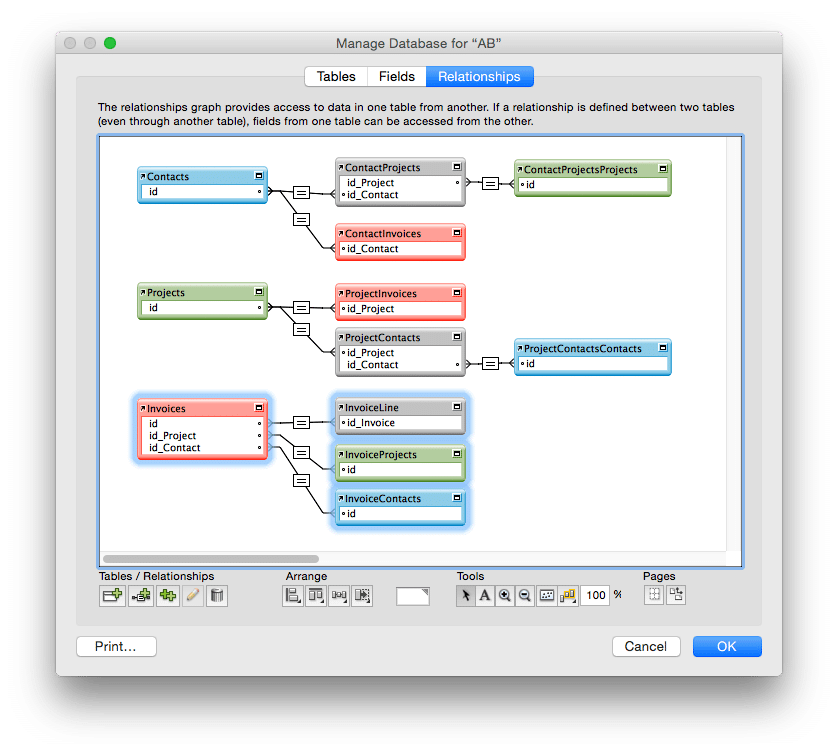
Data modeling is how you structure and organize your information. It is the most important concept in Claris FileMaker.

A well-designed data model is the difference between a solution that scales smoothly and one that becomes difficult to maintain over time.

By getting the structure right at the start, you ensure your solution remains fast, scalable, and intuitive as your business grows.

Key concepts:

  • Tables: Think of tables as spreadsheets. Each table holds one type of information (for example customers, orders, products...).
  • Fields: These are the individual pieces of information within a table (for example "First Name," "Email," "Price").
  • Records: The rows in your table. Each record is one instance (one customer, one order, one product).
  • Relationships: This is the "magic" of FileMaker. It’s how tables talk to each other. By relating a Customer to an Order, you create a single source of truth: change a customer's phone number once, and it updates across every order they’ve ever placed. Learn more >

Think about your data: Before creating tables, ask yourself: "What are the main things I need to track?" Each "thing" typically becomes a table. For example:

  • A contact management app needs: contacts, companies, interactions
  • An inventory system needs: products, orders, customers, suppliers
  • A project tracker needs: projects, tasks, team members, time entries

FileMaker modes

FileMaker works in different modes, each designed for a specific purpose. Switching modes lets you move seamlessly between using data, finding information, designing interfaces, and preparing output.

The four FileMaker modes :

Browse Mode

Your everyday working mode. Use this mode to add, view, and edit records, interact with buttons, and run scripts. This is where most users spend their time.

Find Mode

Your search and discovery mode. Use Find Mode to locate specific records by entering criteria, filtering data, and narrowing large data sets down to exactly what you need.

Layout Mode

Your design and customization mode. This is where you build and refine screens and reports by arranging fields, adding buttons, formatting objects, and shaping the user experience.

Preview Mode

Your output check mode. Preview Mode shows you exactly how a layout will look when printed or saved as a PDF, helping you fine-tune spacing, page breaks, and formatting before sharing.

Take the next step

For a deeper dive into designing databases that grow with your needs, you can explore:

Data modeling that scales video >

Relating tables tutorial >


Get some tips on how to switch mode:

About FileMaker Pro modes >

Start with pre-build apps

Claris FileMaker includes a library of ready-to-use starter apps designed to help you move from idea to working solution in minutes — not days.

Instead of beginning with a blank file, starter apps give you a professionally structured foundation that you can immediately customize to fit your business needs.

Get up and running fast

1. Open Claris FileMaker Pro
Start a new file and choose from the built-in starter apps.

2. Select a starter app that fits your use case
Whether you’re managing contacts, assets, content, or invoices, there’s a starter app designed to get you started quickly.

3. Explore, customize, and make it your own

  • Add and edit real data
  • Navigate through polished layouts
  • Use built-in buttons to automate common tasks
  • See how related information is organized and displayed

Every starter app is fully customizable — nothing is locked in.

Take this opportunity to understand how professional FileMaker databases are structured and behave and the best practices.

Take the next step

Discover how starter apps work, what you can customize, and how easily you can turn them into apps tailored to your organization:

See starter apps in action >

Now that you've explored how starter solutions work and understand the foundational concepts of data modeling and FileMaker modes, you're ready to design your own interface and bring your custom app to life.

Design your interface

This is where you design what the user sees.

Layout mode

Layout mode is your creative workspace. This is where you transform raw data into a professional, user-friendly application. While Browse Mode is for using the app, Layout Mode is for building it.

In this mode, you control how your data is presented and how users interact with it. You can add fields, text labels, buttons, and other interface elements, as well as adjust styling such as fonts, colors, alignment, and spacing to create a clean, intuitive experience.

A key concept to remember:
Layouts are not the data itself — they are different ways of viewing the same data.
This means you can create multiple layouts for the same table, each optimized for a different task.

The common layout types are:

  • Form view: Displays one record at a time. This is the "deep dive" view, perfect for detailed data entry and comprehensive editing.
  • List view: Shows records in a vertical list. Great for browsing, searching, and quick edits.
  • Table view: Displays data in a spreadsheet-style grid. It’s the fastest way to perform bulk data entry or quick sorting.
  • Report view: Specifically formatted for printing or PDF generation. These layouts often include summaries, subtotals, and headers.

Take the next step

Learn how to design screens that make your FileMaker app easy, intuitive, and professional:

See layout mode in action >

Explore layout design best practices >

Key design objects

To build a professional interface, you’ll use specific design objects that do the heavy lifting for you. Beyond basic text and fields, these tools add logic and advanced features to your screen, making your app more intuitive, interactive, and visually appealing.

1. Layout parts

Layout parts are sections of a layout that organize and structure your data. They control where fields, text, and objects appear and determine how your layouts behave, especially for printing and reports.

The common layout parts are:

Header

Appears at the top of every page or layout. It is the perfect place for your app title, navigation buttons, or column headers for a list.

Subsummary

Appears when records are sorted by a specific field. Useful for grouping, subtotals, or section headers in reports.

Body

The main area where your records are displayed. Most data entry and interaction happens here. In Form view, it shows one record; in List view, it repeats for every record in your found set.

Footer

Appears at the bottom of every screen or page. Often used for page numbers, totals, copyright details, or footnotes.

2. Buttons & button bars

Buttons are the primary way users interact with your app, turning a static screen into a dynamic tool. You can turn any object—text, icons, or shapes—into a button to trigger immediate actions.

Button bars take this a step further by grouping segments into a single, responsive unit.

Instead of creating individual buttons, Button bars create a row of uniform, responsive buttons that can act as a navigation menu. They provide a clean and consistent way for users to navigate and perform actions.

3. Panel controls

Panel controls help you organize large amounts of information without cluttering your layout. They stack content in layers, making your app feel organized and professional.

Tab controls let you organize content into separate tabs within a single layout. Users click a tab to switch between different sets of fields, mimicking a physical filing system that’s easy to understand.

Slide controls are similar to tabs but allow panels to slide horizontally or vertically. Perfect for touch interfaces or mobile layouts, they make your app more interactive and compact, letting users navigate multiple sets of data without scrolling or switching layouts.

4. Add-ons

After you create a custom app, you can extend its capabilities with add-ons. They are pre-built components you can drag onto your layouts to provide additional features to your app, such as calendars, galleries, barcode generators, kanban boards, and more.

They’re a way to accelerate development by reusing proven components instead of building everything from scratch.

5. Container fields

Container fields let you store files and media directly inside your database. They can hold images, PDFs, audio, video, and other file types, turning a simple database into a rich, interactive solution.

With container fields, users can scroll through a multi-page PDF or play a video directly on the layout without leaving your app.

6. Portals

A portal is a layout object that displays multiple related records from another table — all within a single screen.

Instead of jumping between screens, you see everything in one place, saving time and reducing complexity for your team.

For example:

  • On a Customer layout, a portal can display all Orders for that customer.
  • On a Project layout, a portal can list all Tasks associated with that project.

“The FileMaker Mantra”

Always remember that your app is built on three layers:

1. Data (Tables/Fields)

2. Logic (Relationships/Calculations)

3. Interface (Layouts)

Working with data

Once your custom app is built, you need to know how to interact with the information inside it. FileMaker provides intuitive tools for managing records, finding exactly what you need, and moving data between systems.

Add & manage data

Every record represents a single piece of information in your table like a customer, product, or project. FileMaker makes it easy to create, duplicate, or delete records, ensuring your data stays up to date and organized.

Key Actions:

  • Create Records: Add new entries (e.g., a new customer or project).
  • Duplicate Records: Save time by copying existing records and modifying only what’s needed.
  • Delete Records: Remove outdated or incorrect entries.

Search & find records

Finding the right information quickly is essential. FileMaker’s Find mode allows you to search for records using exact matches, partial matches, ranges, and multiple fields.

Whether you’re searching a single field, looking for duplicates, narrowing or expanding your results, or performing advanced queries, FileMaker gives you full control over your data.

Sort data

Keeping your data organized is key to efficiency. FileMaker lets you reorder your records at any time, alphabetically, by date, or even by custom values.

You can also combine multiple sort fields for more complex ordering (e.g., by customer, then by order date).

Import & export data

FileMaker allows you to bring in data from other systems (like Excel or CSV files) and export your data for sharing or futher analysis. This is crucial when migrating from another system or integrating with external tools.

Make it smart

FileMaker isn’t just about storing data—it’s about making your app work smarter. With calculations, scripts, and triggers, you can automate tasks, add custom logic, and create dynamic applications tailored to your unique workflows, saving time and reducing errors.

Add logic with calculations

Calculations allow FileMaker to process data dynamically, turning raw information into actionable insights.

Types of calculations:

  • Numeric logic: Automatically calculate totals, taxes, profit margins, averages, discounts…
  • Text manipulation: Combine or extract text (e.g., merge "First Name" and "Last Name" into "Full Name").
  • Date math: Calculate deadlines, durations, or expiration dates, for example the number of days until a project is due.

Automate with scripts & triggers

Scripts are sequences of actions that FileMaker can run automatically or on demand. They can navigate layouts, create records, send emails, generate reports, and much more.

Script triggers make scripts run automatically when events occur, for example when a layout opens, when a field is modified, when a record is created, and more.

If you find yourself performing the same three clicks over and over again, it's time to write a script. Start small—even a single-step script that takes you to a "Reports" layout can save you hours of navigation over the course of a year.

Enhance with AI-Powered Features

AI-powered features in Claris FileMaker 2025 take your app to the next level by adding intelligent automation, predictive insights, and smarter interactions.

With AI, FileMaker doesn’t just execute instructions—it assists users and adapts to their data.

What AI brings to your app:

  • Smarter data interaction: AI makes finding and interpreting data more intuitive through semantic search and natural language queries.
  • Smarter text & communication: AI helps transform raw text into clear, professional content, providing instant summaries and translations.
  • Better data quality & validation: AI helps maintain clean, reliable, and consistent data by automatically catching errors and flagging inconsistencies.
  • Predictive insights & recommendations: AI helps your app move from reactive to proactive by detecting patterns and suggesting logical next steps.
  • Smarter development tools: AI also accelerates development and testing by generating sample data and helping write complex queries.

Security & sharing

Your app is working great! Now it's time to share it with your team while ensuring your data remains protected. In Claris FileMaker, security isn't an afterthought—it's built into every layer of the application.

Secure your app

Security is a critical part of designing a professional solution. FileMaker gives you multiple layers of protection to ensure your app is secure from unauthorized access and data breaches.

Accounts and privileges

Control who can access your app and what they can do. Set up user accounts and assign privilege sets to define permissions—such as viewing, editing, or deleting records.

Encryption

Protect your data at rest by encrypting your database files. This ensures that even if someone gains access to your files, they can’t read the data without the encryption key.

SSL (Secure Sockets Layer)

Secure data in transit by enabling SSL. This encrypts data as it travels between users and your FileMaker server, preventing interception by unauthorized parties.

Share your custom app

Once your app is secure, you can share it with other users on your network, via the cloud, or on mobile devices. FileMaker offers multiple ways to make your solution available:

  • FileMaker Server: Professional hosting for unlimited users, better performance, backups.
  • FileMaker Cloud: Cloud-hosted option, no server hardware needed
  • FileMaker WebDirect: Let users access your app through a web browser.
  • FileMaker Go: Access your app on iPhone or iPad with a mobile-friendly interface.

Take the next step

Learn how to safeguard your data at every level:

Manage accounts & privileges >

Encrypting database files >

Install an SSL Certificate on your FileMaker Servers >

Read the comprehensive security guide >


Explore the best ways to host your app and make it accessible to your teams:

Share a custom app >

Share files on a network >

Publish on the web >

To continue your journey

Your FileMaker app is now up and running, but the journey doesn’t stop here! Whether you’re looking to connect with other users, dive into advanced features, or expand your skills, Claris offers a wealth of resources to help you get the most out of FileMaker.

Explore advanced topics

Once you’ve mastered the basics, it’s time to dive deeper to unlock the full potential of Claris FileMaker.

What you’ll discover:

  • Custom functions to extend FileMaker’s capabilities.
  • Advanced scripting for complex automation.
  • Integration with APIs to connect FileMaker with other tools (e.g., CRM systems, payment gateways).
  • Performance optimization for large databases.


Explore advanced topics >

Join the Claris community

Connect with a global network of FileMaker users, developers, and experts. The Claris Community is the perfect place to:

  • Ask questions and get answers from experienced users.
  • Share your projects and get feedback.
  • Discover creative solutions for common challenges.
  • Stay updated on the latest FileMaker news and features.


Join the Claris Community >

Learn with Claris Academy

Claris Academy offers structured courses, tutorials, and certifications to help you become a FileMaker pro.

It’s the perfect place to turn experimentation into confidence.

  • Learning paths: Choose between “Fundamentals,” “Associate,” and “Professional” tracks.
  • Certifications: Earn official badges and certifications to validate your skills.


Visit Claris Academy >

FileMaker is incredibly powerful, but it's also approachable. You don't need to be a programmer to build professional applications. Take it one step at a time, practice regularly, and don't be afraid to experiment.

Remember: Every expert was once a beginner. Your first solution won't be perfect, and that's okay. Learn from each project, refine your skills, and soon you'll be creating solutions you never thought possible.

Good luck, and enjoy your FileMaker journey!